
Get your API tokens
Step-by-step guide for signing in and running your first query in Apollo Explorer
Authentication is essential for securing access to the N-able GraphQL API, ensuring that only authorised users or systems can interact with your sensitive data and perform operations.
Overview
Users can authenticate either by signing in through N-able Login or by providing an API token. Using an API token is especially useful for automated workflows or programmatic access, where interactive login isn’t practical.
If you have logged in via N-able Login and also provided an API token, the API token will take precedence for authentication. This ensures that automated or programmatic access is prioritized when both methods are available.
To use N‑able SSO Login with N‑central, visit the Authentication section of the N-central User Guide for information on setting up your login
Step 1 - Log into the API Token Management portal
- Open a new browser tab and go to the API Token Management portal https://n-able.app/api-token-management (N-able Login required)
- If you are not already signed in, enter your N-able Login SSO credentials to log in.
- After signing in, you will be taken to your product dashboard.
Step 2 - Generate an API token
- On the left hand side menu, find and select API Token Management.
- You should now see the API Token Management screen listing all current keys and their Expiration date.
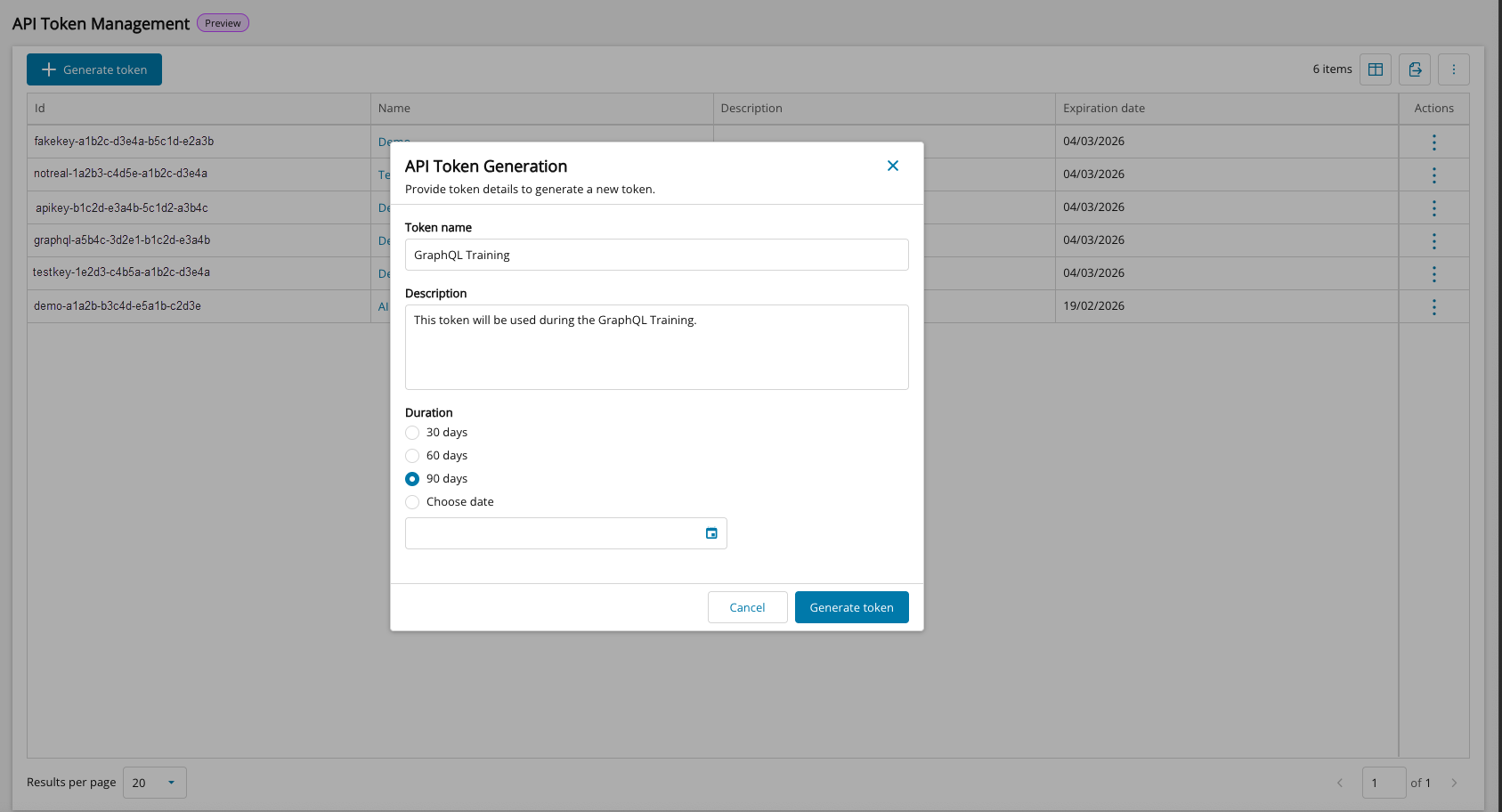
(In the below image, this screen and the key areas you need are highlighted.) - On the API token management screen, select Generate token, to open the API Token Generation window.
- Provide a Token name and an optional Description to identify the API token and its intended purpose.
- Select the Duration from the available presets, or Choose a custom date using the calendar.
- Choose Generate token to create.
Step 3 - Copy API token
Paste the token into a safe place (for example, a secure notes tool or directly into the Apollo configuration, if you are on that step).
Once the token is copied and safely stored, you can close the modal.
apiClientTokenCreate mutation - so make sure it is securely stored for future use. You will not be able to close the modal until you have clicked the copy to clipboard button.Checklist
Mark this step complete
Mark as completeTick to save your progress for this tutorial.
Updated 4 months ago
What’s Next
For further information on authentication and our API tokens visit: