
Write and run operations
How to write, run, and refine operations
An operation in GraphQL is a request you send to the system. Operations can be:
- Queries, to retrieve data (for example, show me assets).
- Mutations, to perform actions (for example, reboot an asset).
You don’t need to learn GraphQL to get started. A complete set of saved queries and mutations is available for you to use.
1. Start from the saved collection
- In GraphQL Explorer, expand the left navigation Queries or Mutations menu.
- Choose an operation that matches what you want.
- Select the GraphQL Explorer button to open the operation in a new editor tab.
2. Add your API token
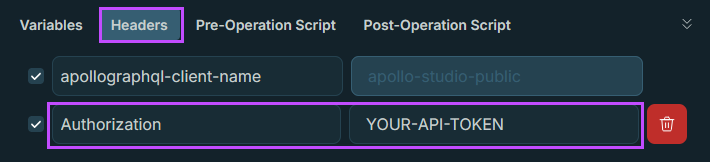
If you didn’t add your API token earlier, go to Headers in the lower pane. Add a New header named Authorization then enter your API key in the value field. (How to get your token).
3. Add variables
Some queries require input values (e.g customerId , etc.)
- Go to Variables in the lower pane.
- Enter the values required for the query.
Example shape (yours will vary):
{
  "customerId": "12345"
}
4. Run the operation
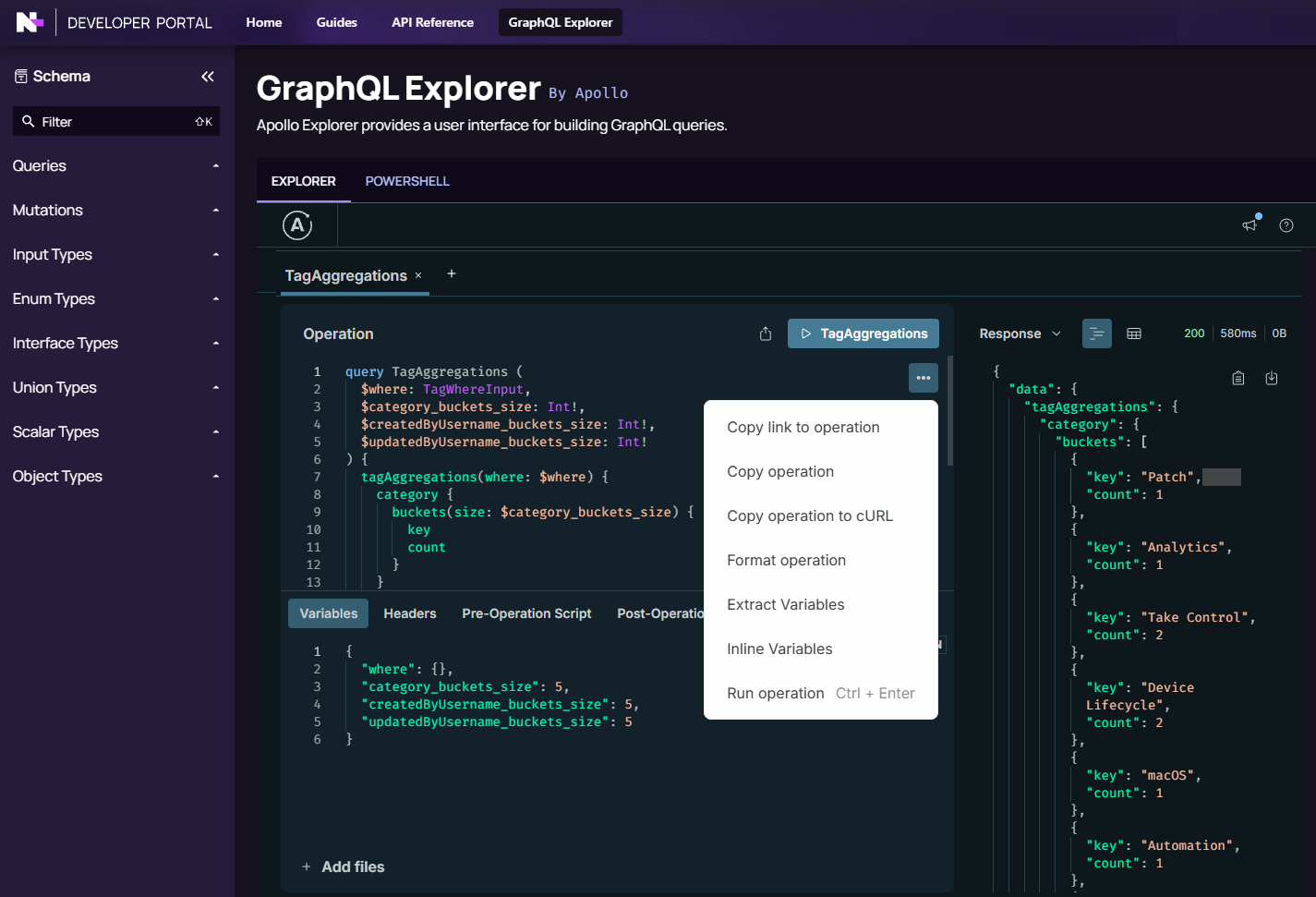
Select Run operation in the top-right corner of the operation window. The button label matches the tab name. Alternatively, press Ctrl+Enter. After the operation runs, review the response.
- If the query is successful, the response window displays data.
- If the query fails, the response window displays error messages. Check for issues such as an invalid token, missing access, or incorrect variables.
If no data is returned, possible reasons include:
- You do not have access to that product area.
- There is no data for that query yet.
- The variables you entered do not match any records.
Use the options (...) button in the editor to access additional actions, including copying, formatting, extracting variables, and running the operation.
Checklist
Mark this step complete
Mark as completeTick to save your progress for this tutorial.
Updated 4 months ago